How to track learning progress using TED-Ed
By Logan Smalley on March 16, 2013 in News + Updates
The TED-Ed BETA website has seen over two million unique visitors since its launch in late April of last year. In hundreds of thousands of instances, visitors have opted to activate one of TED-Ed’s most powerful features: the ability to track and measure various forms of engagement within each TED-Ed Lesson over time. This post explores the Lesson-tracking features in depth, but first know that….
TED-Ed’s operating philosophy is that every person is simultaneously learning from AND educating the people they encounter in life. Though the educational experience is certainly very pronounced in traditional school settings, learning is by no means exclusive to the classroom. Education is a constant. It’s human nature to be curious, to pursue and learn from things that interest you, and to want to share what you learn with others.
For these reasons, the TED-Ed website, as a platform, provides all users with free and equal access to both its Lesson creation and its Lesson consumption tools. This allows teachers to create Lessons for their students or for fellow teachers but also for students to create lessons for each other or even for their teachers. We’ve also seen businesses create TED-Ed Lessons for their employees, artists create Lessons for their fans, authors create Lessons for their readers…and one guy (TED Fellow Eric Berlow) even created an intelligent Lesson on the flatulent nature of hippopotami.
The point is: The tool is flexible. Any visitor can use the site as both a teacher and a student, at anytime….because no matter who we are, or where we are in life, we always have something to learn and something to teach.
So, how can TED-Ed be used to track your educational experiences on the site across time?

Depending on how you choose to use the site, your progress can be tracked in the two ways explored below. All tracked progress is reflected in the “You” section of the site, which is only activated when you create a free TED-Ed account using a valid email address, or a Facebook account.
Note: All visitors may engage in TED-Ed Lessons anonymously, but, in order to track your progress, you must be logged into your TED-Ed account as you engage with the Lesson.
1. Tracking your progress as a learner…
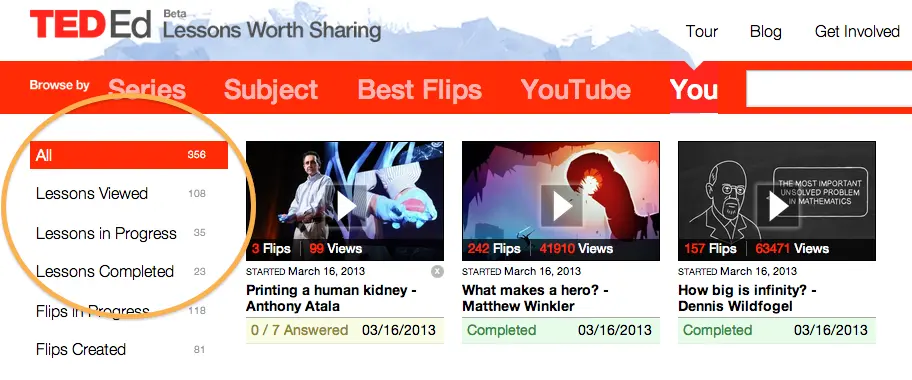
As a learner, you can track all of the multiple choice answers, written responses, or discussion topic responses that you save to any Lesson that you have viewed, started, or completed on ed.ted.com (including Lessons you create).
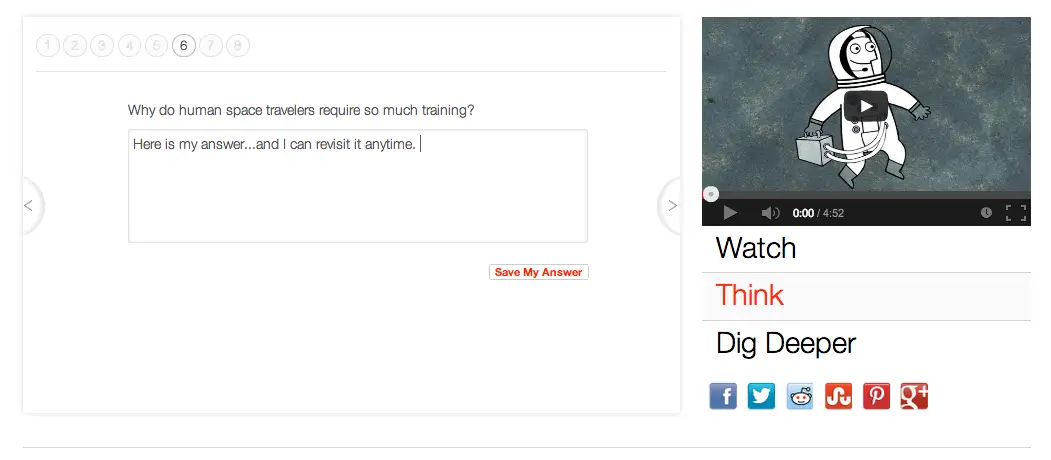
Simply click a lesson that you’ve started or completed. Your saved answers will always be present on the Lesson page.
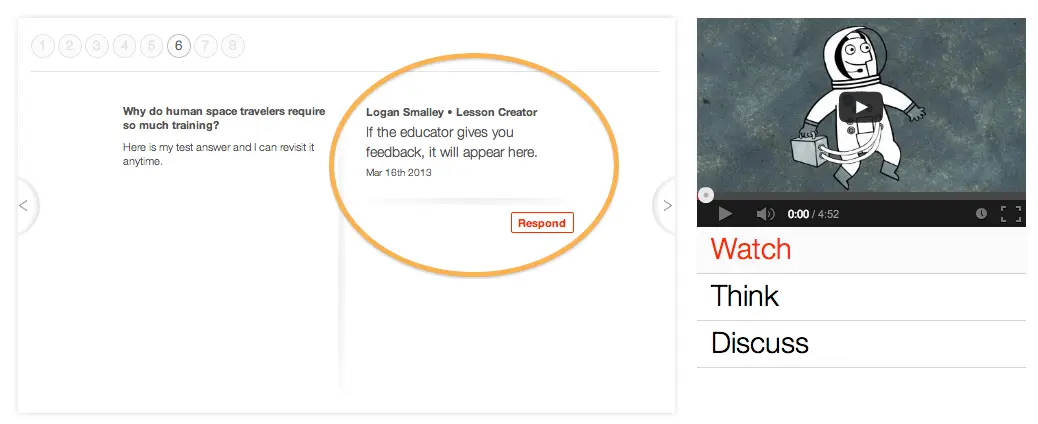
If the Lesson you engage in as a learner was created by someone else, that Lesson creator will be able to see the answers that you provide (you can see their view of the exchange below). The Lesson creator can give you private feedback on any answers provided in the “Think” section, and you can also privately respond to that feedback directly on the Lesson page. Any comments made in the “Discuss” section are visible to anyone with access to the Lesson.
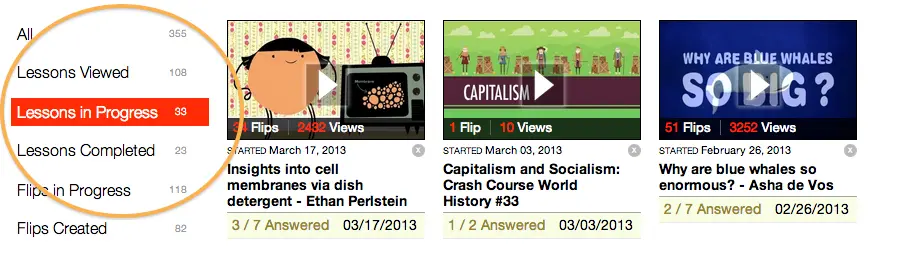
On a more general level, you may always return to the “You” section to see which Lessons you have viewed, which Lessons are in progress, and a list of all the Lessons you have completed while logged into TED-Ed.
2. Tracking your progress as an educator…
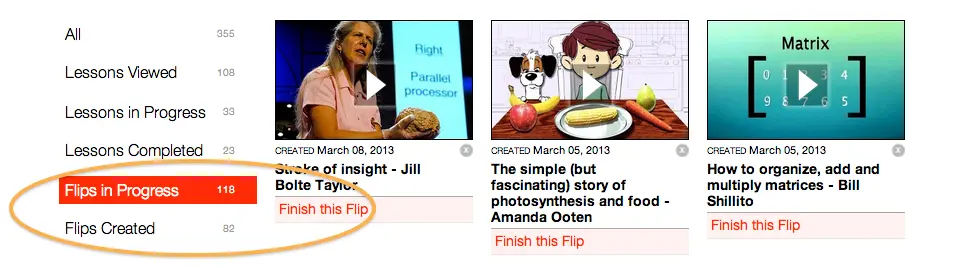
The “You” section, which is activated when you create a free TED-Ed account, also keeps track of any Lesson you have started creating or that you have completed and distributed to your learners. TED-Ed is constantly saving your work, so if you started creating a Lesson but didn’t have time to polish and publish it, you will find it waiting for you in the “Flips in Progress” section the next time you log in.
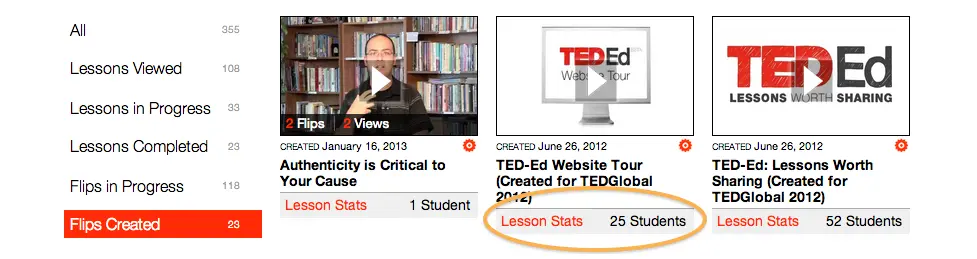
If you check the “Flips Created” tab, you can see how many learners have engaged with any given Lesson that you’ve created and shared. Click Lesson stats and….
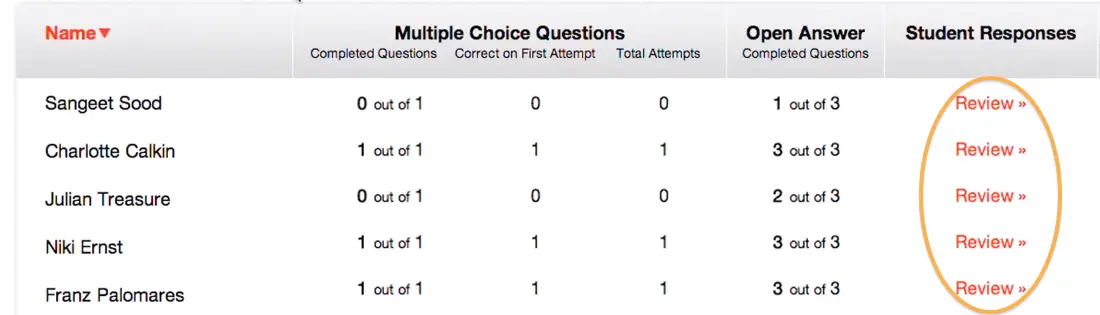

…you’ll see which learners took the Lesson, how many multiple choice (m/c) questions each student completed, how many they got correct on the first attempt, and the total number of attempts across all m/c questions. You can also see how many open answer questions were completed. If you would like to see the actual m/c or open answer responses, either click “Review” or download the student responses in .csv format.
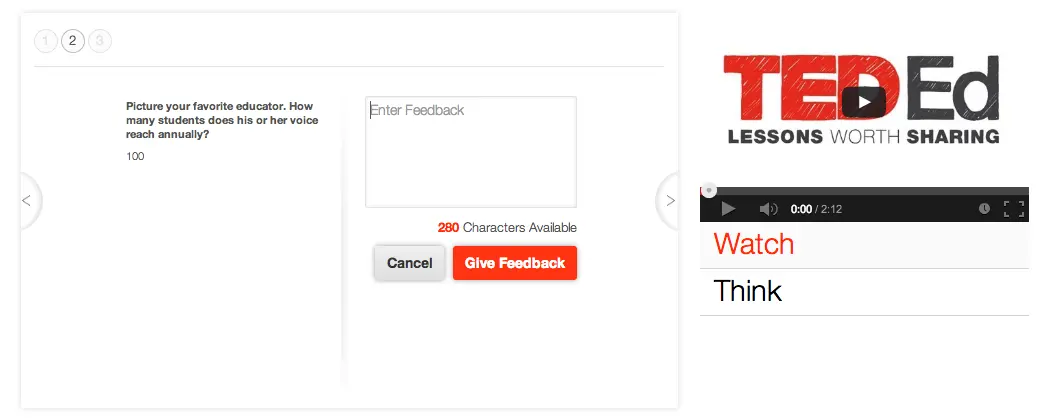
As you are reviewing student answers on ed.ted.com, you can provide feedback directly on the TED-Ed Lesson page. When you click “Give Feedback,” the student is sent an email that contains a link to your feedback. If they follow the link, there is a space provided for them to respond to your feedback, in which case you will receive an email letting you know that they have responded. Only the Lesson creator and the learner have access to this exchange.
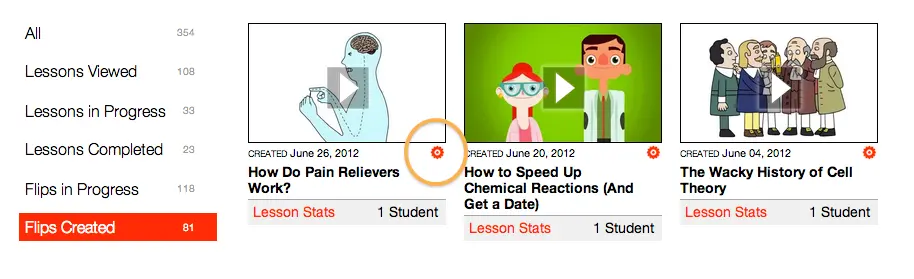
To edit, or to re-distribute an existing Lesson, click the button on the bottom right corner of the flip you’ve created. The button looks like a small gear.
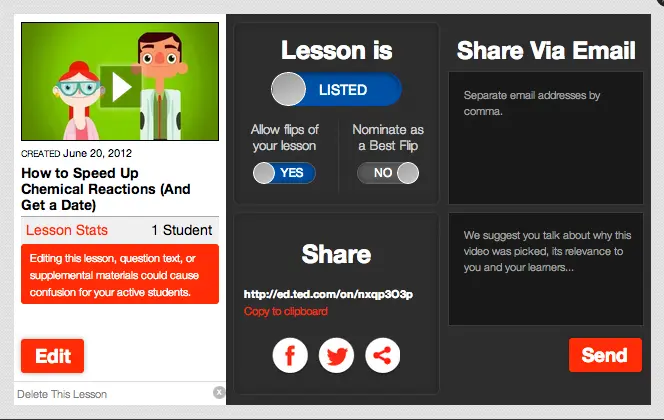
Clicking the gear will bring up your lesson settings and sharing options, any of which can be edited, toggled, or utilized. That’s it!
If you’re interested in using TED-Ed to track your own progress or your student’s progress through the TED-Ed library, simply log in, or create a free TED-Ed account.